Here’s another great interview from David Lynch’s Interview Project:
httpv://www.youtube.com/watch?v=xC2PqmE9XNg&feature=player_profilepage
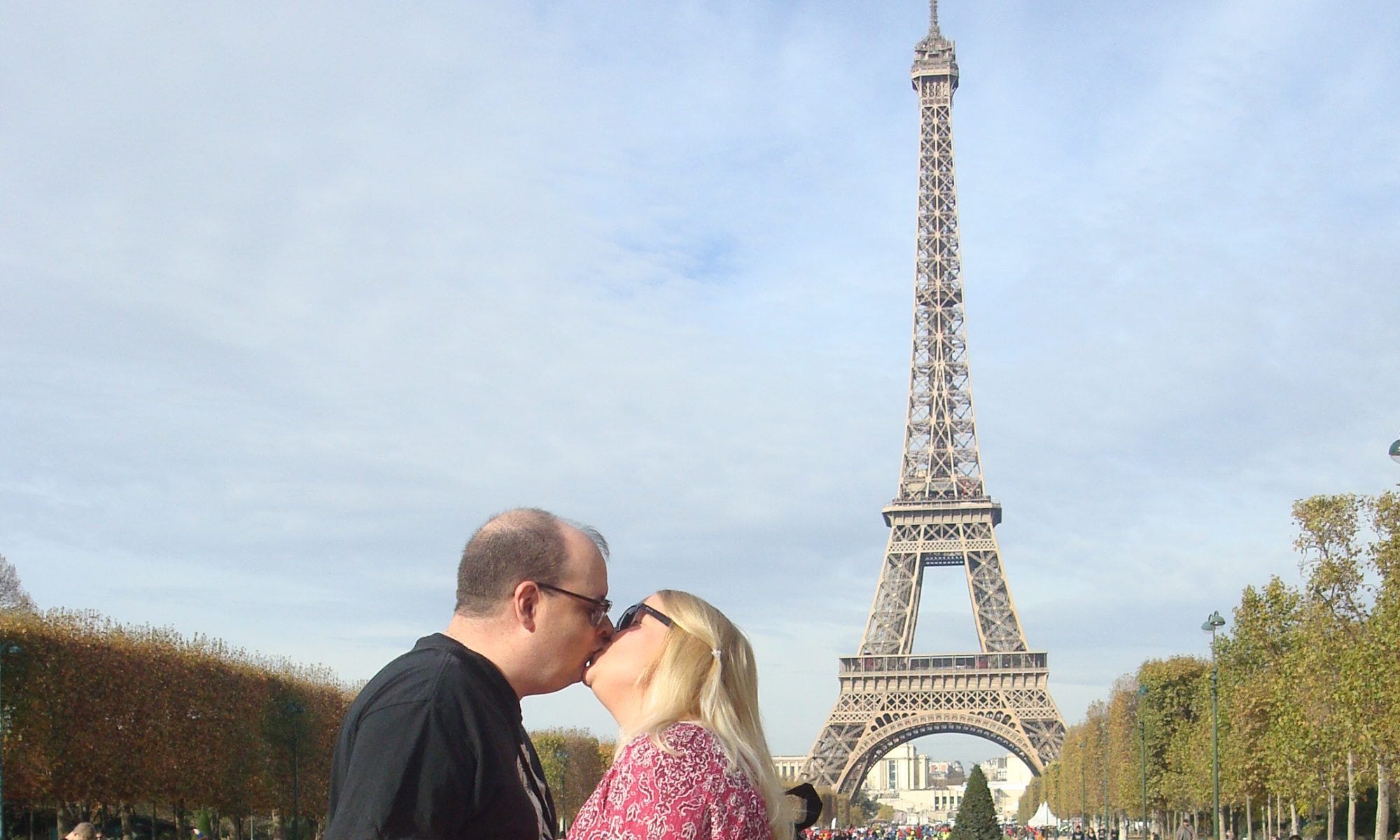
Drinking whiskey clear!
Here’s another great interview from David Lynch’s Interview Project:
httpv://www.youtube.com/watch?v=xC2PqmE9XNg&feature=player_profilepage
This episode begins with Betty and Carla working on a grocery list. Betty says that they need apples, but that they should come from Rodney Farms. Carla says that the farm is near her church, and that she’ll pick some up on Sunday. Sally then asks why the Drapers don’t go to church’ Betty says that they do. Sally says “on Christmas… Carla goes every Sunday”. Betty says that they don’t need to go every week. Don walks in and kisses the kids. He asks Sally how her day at school was; Bobby ass why Don never asks him how his school day was. Don says that he does, but that Bobby’s answer is always longer, so he asks Sally instead. Bobby then asks when Halloween is; Betty says that it’s “before Thanksgiving”, then mentions a Halloween party that Carlton and Francine are having, but says that they’ll probably have to miss it, as they will be in Philadelphia selling Gene’s house. Betty brings Don a drink, then asks if he’s sleeping there that night. Don says that he isn’t, which causes Betty to say that he’s working too hard.

We next see Don knocking on Suzanne’s door. She answers, and he leans in to kiss her. She steps back and tells him to come inside first. He asks if she was grading papers, because she has a gold star on her cheek. The two embrace, but just as Don goes to kiss her, she says that his service called and said that Hilton had called him, but that he (Hilton) was probably in an airplane by now. Don says “thanks Miss Farrell” in his best 3rd grade student voice. She leans in and says that she wants him to spend the whole night with her. Don doesn’t say anything, only pulls her back to the bedroom.
Blockbuster news: the Roman Catholic Church has announced that it will now accept conservative Anglicans as full members. Groups would be able to join “personal ordinariates”, which would have distinct Anglican traditions (possibly including the Book of Common Prayer) and, since Anglican priests would be allowed to join, that would allow for that rarest of all creatures: the married Roman Catholic priest.
This news comes as a mixed blessing to me. Certainly, it’s always nice to have options, and many Anglo-Catholics would prefer switching to Rome before losing their cherished traditions. On the other hand, for folks like me this is a nightmare. Any Anglo-Catholics who have not joined the Roman Church already will probably do so now instead of joining the ACNA, thus making ACNA just “The Episcopal Church minus the gays”. So ACNA loses an important wing of Anglicanism, and I’m stuck holding my nose about joining Rome. What a choice!
Sigh.
With Windows 7, Microsoft made the first major change to the taskbar since it first appeared in Windows 95. The standard “taskbar box” that you’re familiar with is gone, replaced by an icon of the app(s) you’re using:

You can “pin” any app you’d like to the taskbar, so it will always be available. And big part of the new taskbar is “jumplists”, where you can add documents to the taskbar icons. If you add an icon for Remote Desktop to the taskbar, for instance, all of your previous connections will be displayed when you right-click on the icon, so connecting to \\WORKSERVER is as easy as right-clicking on the icon and then left-clicking on the \\WORKSERVER entry. Likewise, if you always use the same bunch of Word documents every day, you can pin Word to the taskbar and add those documents to the jumplist, so that opening DAILY_REPORT.DOCX is only a two-click process.
While all this is pretty neat, you might wonder what has happened to the standard Restore, Minimize, Maximize and Close features that you used to get when right-clicking on a taskbar entry. You can get those back by holding down the SHIFT button when right-clicking on the taskbar icon. What’s more, Microsoft has added several new keyboard shortcuts when right-clicking on a taskbar icon:
SHIFT + Click – Opens a new instance
CTRL + SHIFT + Click – Opens a new instance under Admin
SHIFT+ Right-Click – Shows “Restore”, “Minimize”, etc. options
CTRL + Click – Cycles between windows in the group
Just a few hours ago, #19 Georgia Tech defeated #4 Virginia Tech at The Flats 28-23, giving the Ramblin’ Wreck their first home win against a top 5 opponent since the Bobby Dodd-led Jackets beat Alabama all the way back in 1962!

Hellll yeaaaahhh – GO JACKETS!
Microsoft includes a “geographic” theme with every copy of Windows 7. American Windows 7 users, for example, can right-click on the desktop, choose “Personalize” and choose the “United States” theme, which includes several National Geographic-style wallpapers of some of America’s most majestic sites. Likewise, British users can choose the “United Kingdom” theme, and Australian users can choose the “Australia” theme.
Somehow or the other, Windows 7 is able to determine which country you’re in, and will only show that region’s theme by default in the “Personalize” UI. However, the rest of the themes are actually installed with every copy of Windows 7, and with one quick tweak you can use any theme you like:
1) In a Windows Explorer window, type or paste the following text, then press enter:
%WinDir%\Globalization\MCT
2) You will see several folders in the Explorer window. Click on “MCT-AU” for Australia, “MCT-CA” for Canada, “MCT-GB” for the UK , “MCT-US” for the United States, or “MCT-ZA” for South Africa.
3) Inside each country’s folder will be several folders. Click on the “Theme” folder, then click on the .theme file inside that folder to apply.
One of the most trivial (yet my most beloved) features of Windows 7 is the built-in ability to slide-show (shuffle) wallpapers.
The wallpaper chooser in Windows 7 looks much like the one in Windows Vista, except that when you hover your mouse over a wallpaper thumbnail in Windows 7, a checkbox appears on the image. You can therefore choose one (or more) wallpapers, then choose how often to change them, and whether you want them to be displayed in the order chosen, or shuffled. It’s a tiny little feature, but one that was long overdue in Windows.
What’s even cooler is that you don’t even have to use the Wallpaper applet to get the party started: you can also simply highlight a bunch of pictures in any Windows Explorer window, then right-click and choose “Set as Desktop Background”:

It’s really a nice little touch!
In the “Souvenir” episode of Mad Men, the mayor of Ossining was listed as “Andrew Johnson” on a name plate during a meeting. I searched the Internet high and low to see if that really was the name of the mayor at the time. Finding nothing, I sent an email to the Ossining Public Library to see if they could help.
It took a few days, but “Cheryl” of the Library’s Adult Services Department got back with me to say that a man named Jesse A. Collyer was mayor of the town in 1963.
Just so you know!
One of the biggest new features in Windows 7 are libraries, which are virtual folders which organize files of a certain type, regardless of their location on the hard drive. For example, one of the default libraries is Pictures, and you can tell Windows to search certain folders (or your entire hard drive) to find photos to add to the virtual Pictures folder.
While it’s a groovy new feature that I like, one thing I hate about it is that Microsoft decided to put it front and center with Windows Explorer. When you click on the “Windows Explorer” icon on the taskbar, the window displays your libraries instead of the standard hard drives you’re probably used to.
Fortunately, you can change this behavior back to the “old way” by simply editing a shortcut:
1) Close all open Windows Explorer windows.
2) Hold down the SHIFT key, right-click on the Explorer shortcut and choose “Properties”.
3) In the “Target:” box, paste the following text:
explorer.exe ::{20D04FE0-3AEA-1069-A2D8-08002B30309D}
4) To change the shortcut back to the default behavior, repeat steps 1 and 2 and paste the following text instead:
%windir%\explorer.exe